There will come a time when you need to pause your ads at an antisocial hour, maybe because an offer ends or your website is due to be taken down for maintenance. Using Doubleclick, you can schedule these changes to take place, revert if necessary and be emailed with a change summary. Here’s how:
Step 1.
Click on the Campaign, Ad Group, Keyword or Advert ta in your DS3 account. Changes cannot be scheduled from the Engine Accounts tab.
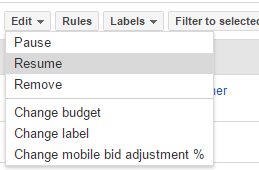
Highlight the campaigns, ads, or keywords (whatever you want to change) using the tick boxes on the left hand side of the data table. (If you want to edit everything in your current view, you don’t need to check any boxes.) Click the ‘Edit’ button, and choose the action you want to schedule.
Step 2.
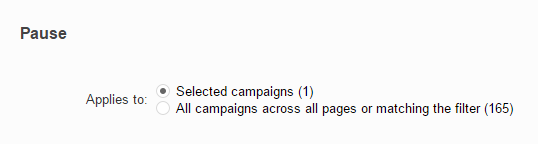
If you’ve selected tick boxes to identify the campaigns, ads or keywords you want to change, choose the ‘Selected’ option for the ‘Applies to’ field. In this case, mine is showing ‘Selected campaigns’ as I am scheduling changes on the campaigns tab as opposed to keywords, ad groups or adverts.
If you’re making changes to all assets in the current view, choose ‘All (assets) across all pages or matching the filter’.
Step 3.
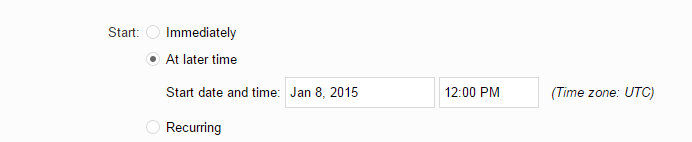
Under the ‘Start’ menu, the ‘Immediately’ option is automatically selected. As we’re scheduling these changes to take place in the future, we’re going to choose ‘At later time’. A new menu set will appear titled ‘Start date and time’. This date and time indicate when your scheduled change will take place. For example, if you have an offer ending at midnight on the 10th December, you want your change to take place at about 11:59 on the 9th December.
Step 4: Name your scheduled edit
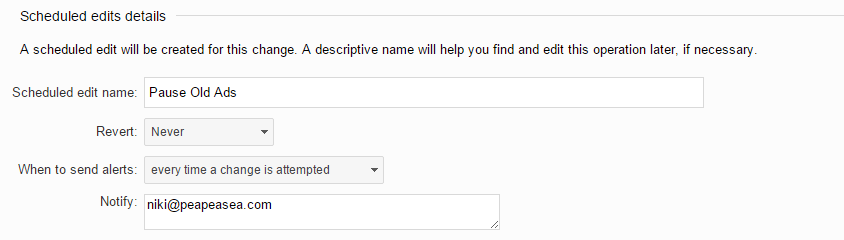
The next field required is ‘Scheduled edit name’. It’s a good idea to include the date or details of the offer that’s ending – anything that means you’ll be able to distinguish this change from others when you look back on it, as this name is how you will identify the edit if you need to review it in the future.

Step 5. (OPTIONAL) Revert changes
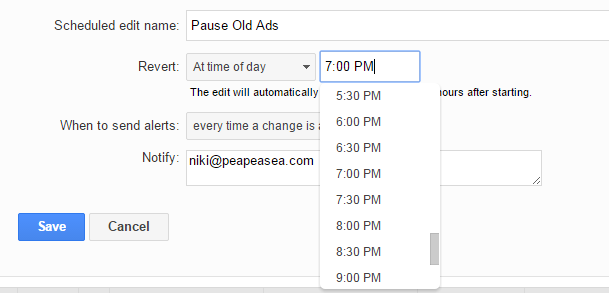
If you’re making a temporary change (E.g. pausing all your ads while maintenance is carried out on your site) you will need your changes to be reversed, potentially before you’re in the office/available. In this scenario, click the ‘Revert’ drop down menu under your scheduled edit name and choose ‘At time of day’.

Step 6. OPTIONAL – Choose revert time
Once you have chosen to revert your change ‘at time of day’, you need to specify what time you’d like your change to revert. You don’t have a ‘date’ field here, so the change can only be scheduled to revert within up to 24 hours of the change first being made. (If you need to schedule the change to revert more than 24 hours later, you’ll need to create a new scheduled edit by following steps 1 to 4 and select ‘pause’ if the original change was ‘enable’ etc).
Step 7. Set your alert preferences
Using the ‘When to send alerts’ menu, you can choose when to be notified via email. Either ‘every time a change is attempted’, ‘only if changes occur’ or ‘only if there are problems’. I would recommend choosing ‘every time a change is attempted’ as then you’ll be notified of all scheduled activity and won’t get any nasty surprises later on. In the ‘Notify’ box, enter your contact email address.
Step 8. Save
Click save and you’re all set!
I find this feature particularly useful for:
- Pausing offer ads at midnight when the offer ends and enabling the new ones
- Pausing all campaigns to pause when a site is down temporarily for maintenance (usually overnight) and restarting them the next day
- Pausing keywords after a specific event has taken place (E.g. On the day of a conference you’ve been marketing which tickets are no longer available for purchase)
Have you used scheduled edits for any other use? Please share your thoughts on this feature and how else it can be used!
 Pea Pea Sea Digital Consulting